 ChaiComet
Download ChaiComet
The one-keystroke coding tutor for Mac and Windows. 20 free credits, no card.
Version 0.1.0
The download includes 20 credits, and they last a year.
Setup guide
Open ChaiComet, sign in, then allow Screen Recording and the microphone when asked.
Open it the first time.
ChaiComet is not notarized by Apple. This Mac signs it locally, so Gatekeeper treats the download as unverified. Open the disk image and drag ChaiComet into Applications, then follow these prompts.
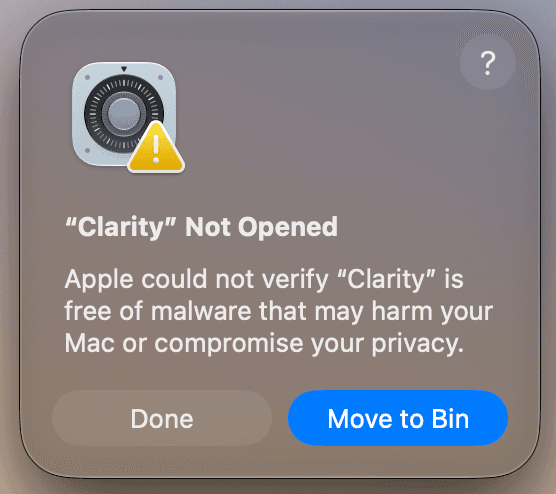
If Open Anyway is not there, right-click ChaiComet in Applications, choose Open, then Open again.
Sign in and allow access
After ChaiComet is open, sign in with ⌘⇧A. Allow Screen Recording and the microphone when asked.
- 4
Sign in
⌘⇧AOnce ChaiComet is open, press these keys and log in with your account.
- 5
Capture once
⌘⇧SPress these keys to take a screenshot. macOS asks for Screen Recording. Allow ChaiComet. If the shot is empty, turn ChaiComet on under System Settings → Privacy & Security → Screen Recording, open the app again, and press the keys once more.
- 6
Listen once
⌘⇧LPress these keys to start listening. macOS asks for the microphone. Allow it. The permission is remembered.
Open it the first time.
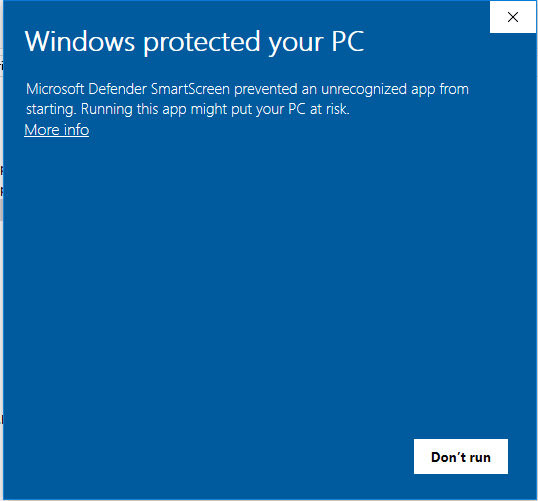
Unzip the download and open ChaiComet.exe. SmartScreen stops an unrecognized app. Click More info, then Run anyway.
Sign in and allow access
After ChaiComet is running, sign in with Ctrl+Shift+A. Allow the screen and the microphone if Windows asks.
- 3
Sign in
CtrlShiftAOnce ChaiComet is open, press these keys and log in with your account.
- 4
Capture once
CtrlShiftSPress these keys to take a screenshot. If Windows asks to allow the screen, allow ChaiComet.
- 5
Listen once
CtrlShiftLPress these keys to start listening. If Windows asks for the microphone, allow it.